Your Eidos account
An Eidos online account has a site of its own, account.eidosmd.com, where you manage it in the browser: your Profile, your Security, your Devices, Plan and billing, and Support, where you ask Eidos for help and read the answers. You sign in there as you do in the app: with your email and a code, with Apple or Google, or with a password.
From the app, Manage account on Settings → Account opens each section, for accounts on Eidos online, and Plan and billing in the account menu opens it already signed in.
Profile
Section titled “Profile”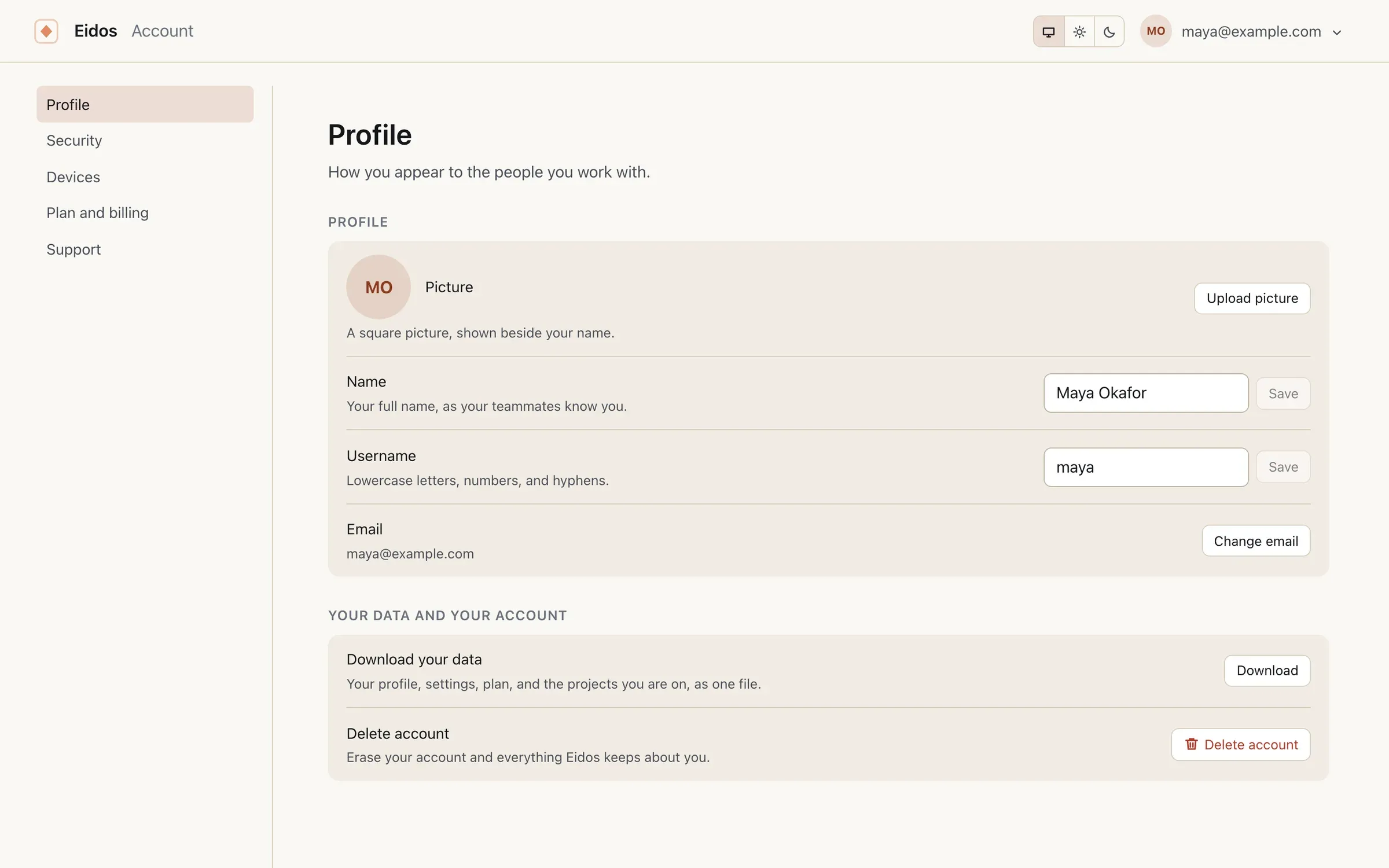
Profile is how the people you work with see you:
- Picture: Upload picture takes a square PNG or JPEG, shown beside your name in every project. With none, Eidos shows your Gravatar picture, or your initials.
- Name: your full name, as your teammates know you, shown instead of your email on a project’s members list.
- Username: lowercase letters, numbers, and hyphens, 2 to 30 of them, unique across Eidos. It says whether a username is free as you type, and saves only one that is.
- Email: Change email sends a code to the new address, and the change takes once you enter it there.
A change to how your account is reached (your email, a password, Apple, or Google) first asks you to Confirm it’s you, so someone who finds the browser left open can’t make it. Any one proof is enough: a code from your authenticator app or a backup code, your password when you have one, or a code sent to your email. A confirmation holds for five minutes in that browser, so changes made one after another ask once.
Ways to sign in
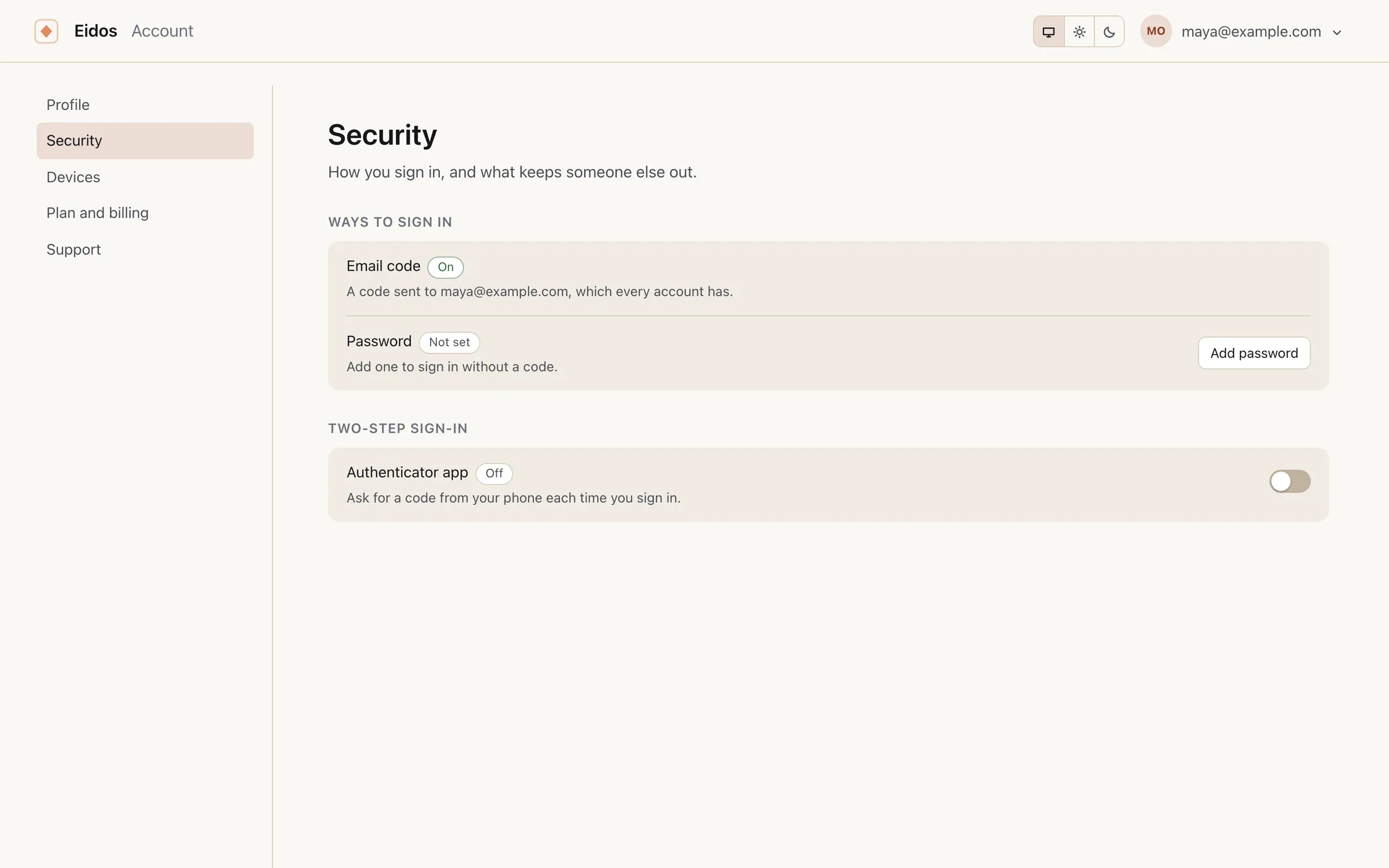
Section titled “Ways to sign in”Security lists your Ways to sign in. The Email code is every account’s, and is never removed. Beside it:
- Password: Add password sets one, at least 10 characters; a password that has appeared in a data breach is refused. Once it is set, Change and Remove are beside it. With a password, Sign in with a password works in the app and on the site, and Forgot your password? replaces it by an emailed code. Removing it leaves the code, Apple, and Google.
- Apple and Google: Connect signs in with the provider in your browser and adds it to this account, so Continue with Apple or Continue with Google signs you in from then on. Disconnect takes it away. An Apple ID or Google account that already belongs to another Eidos account is refused, never merged.
Two-step sign-in
Section titled “Two-step sign-in”Under Security, two-step sign-in adds a second step after the email code, a password, Apple, or Google: a code from an authenticator app on your phone, such as 1Password, Google Authenticator, or Authy.
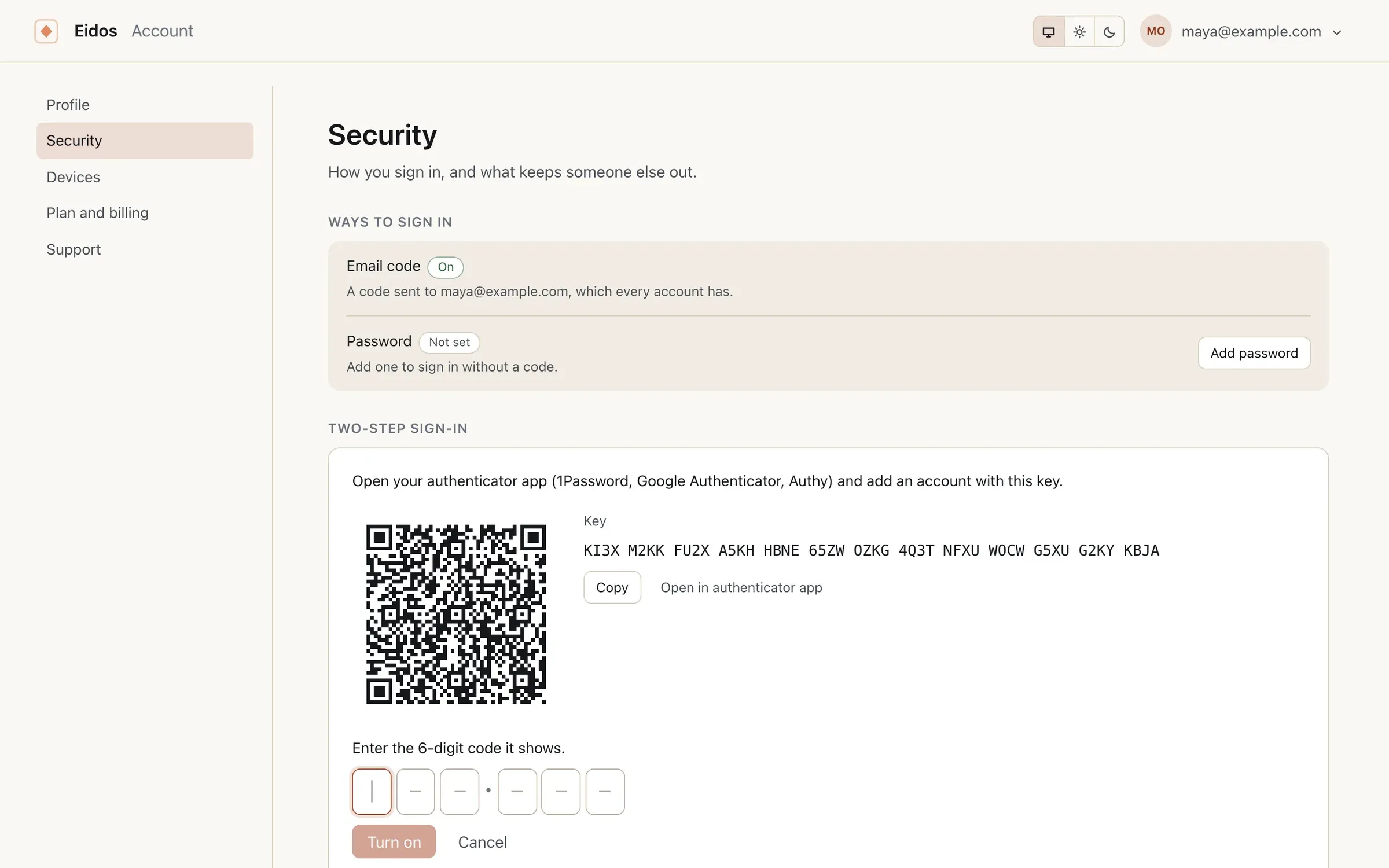
To turn it on, switch on Authenticator app. Scan the QR code with your authenticator app, or copy the key into it, or use Open in authenticator app on your phone. Then type the 6-digit code it shows, and Turn on. With a password set, turning it on asks for the password first. If the code isn’t right, check the key, and that your phone sets its clock automatically.
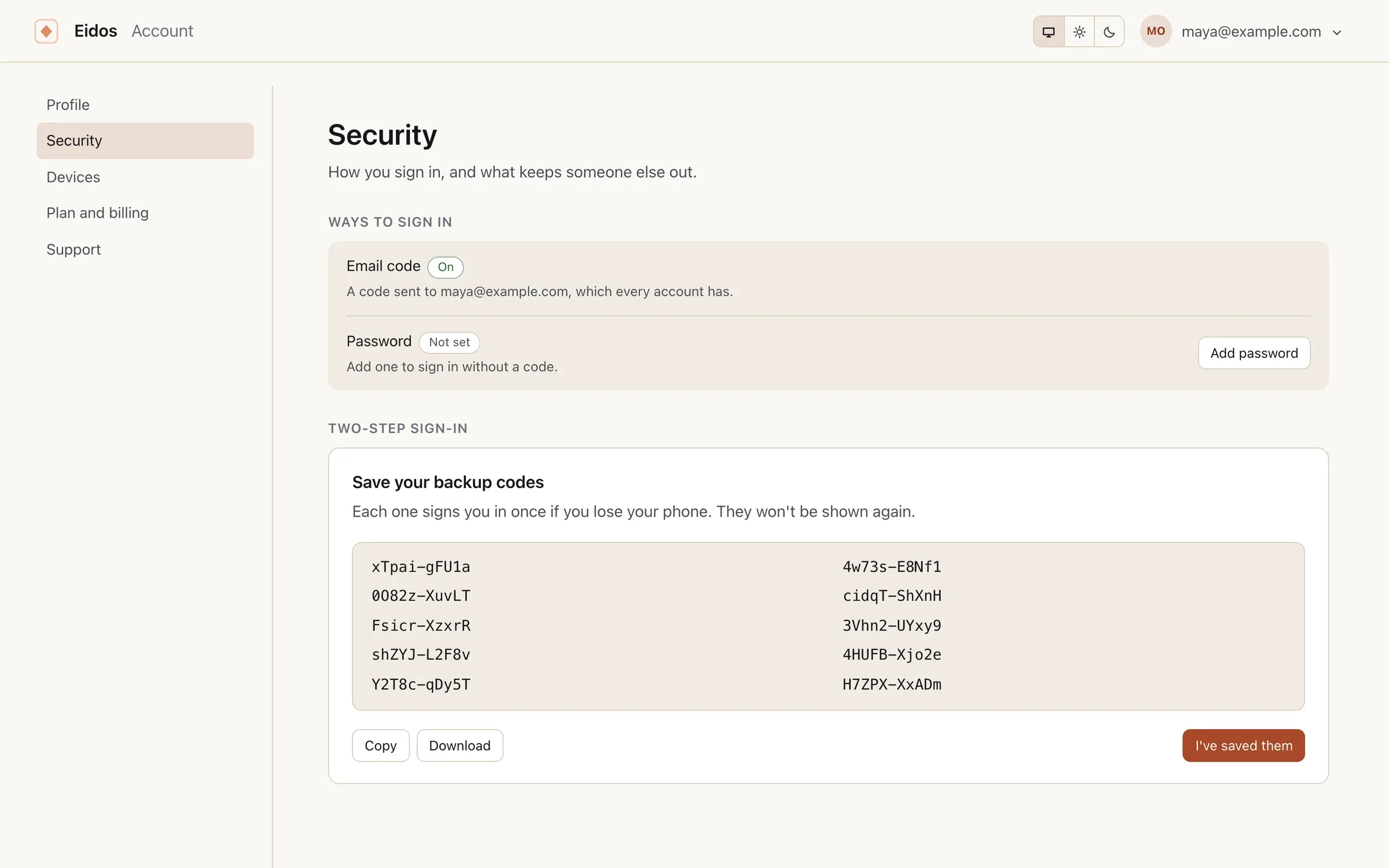
Next come your backup codes: ten codes, each of which signs you in once if you lose your phone. They are shown this once, so Copy or Download them and keep them somewhere safe, then I’ve saved them. Security then says how many are left, and warns you when only a few remain. New backup codes makes ten more, and the old ones stop working; it asks for a code from your authenticator app, or a backup code, first. Turning two-step sign-in off asks for one too.
With it on, every sign-in, in the app and on the site, asks for the authenticator’s code after the first step, or a backup code instead.
Lost your phone and your backup codes? The sign-in says what to do: without your authenticator or a backup code, only Eidos support can turn off two-step sign-in, after checking the account is yours. Write to [email protected] from the account’s email address.
Devices
Section titled “Devices”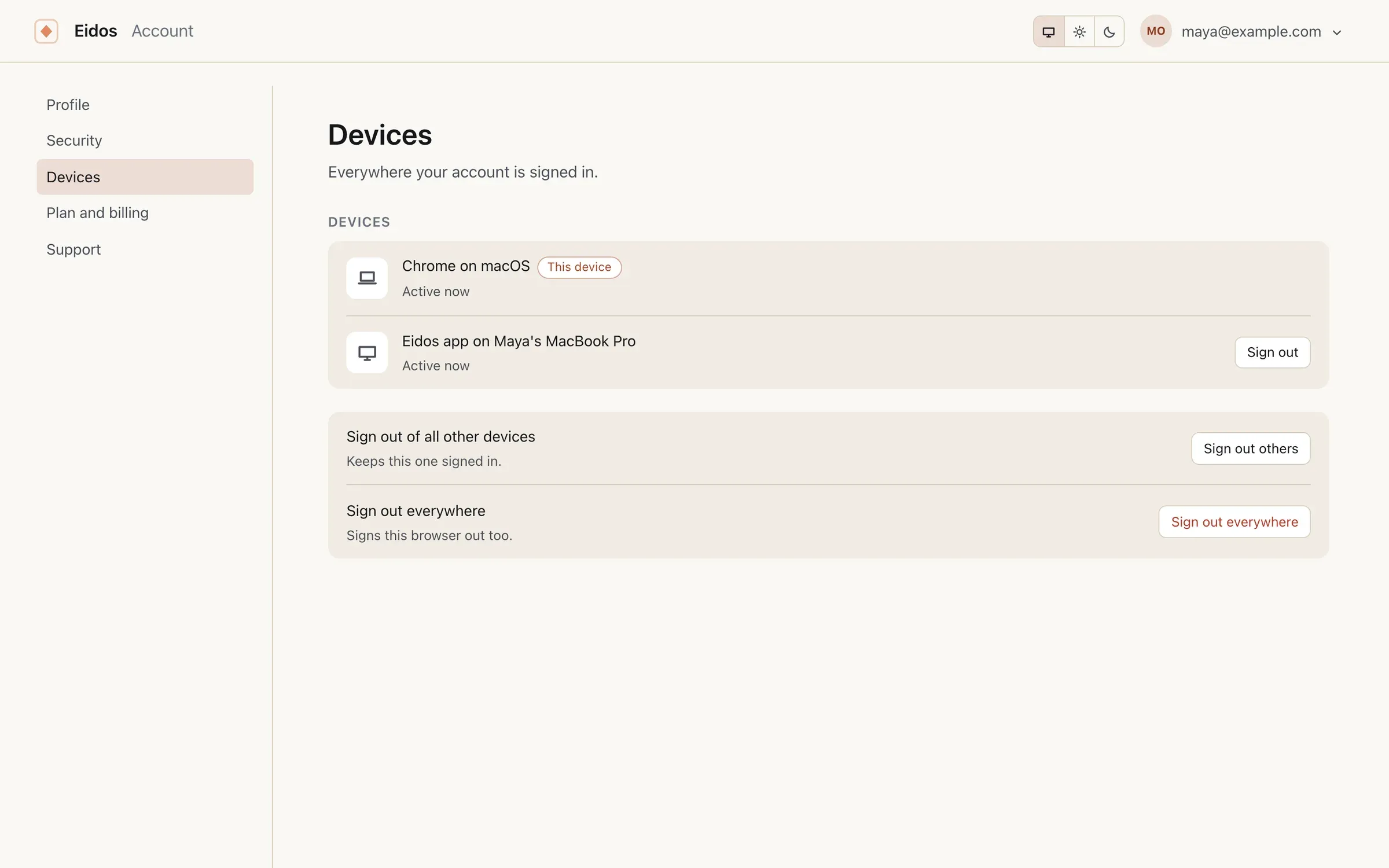
Devices lists everywhere your account is signed in: the Eidos app by the machine it is on, a browser by its name and system, each with when it was last active, and this browser marked. Sign out beside one ends it there. Sign out of all other devices keeps only this browser signed in, and Sign out everywhere signs this browser out too. Each asks you once more before it does it.
A device signed out keeps its folders and the changes waiting on it, and sends them once someone signs in on it again. An account is active on three devices at once; see Your account.
Plan and billing
Section titled “Plan and billing”Plan and billing is a section of the site. On the free plan, or with a seat someone else pays for, it is one page: your seat (Start a free trial or Get a seat), the two editors without a seat your projects cover for free, with Change, and your storage, project by project, with Add storage.
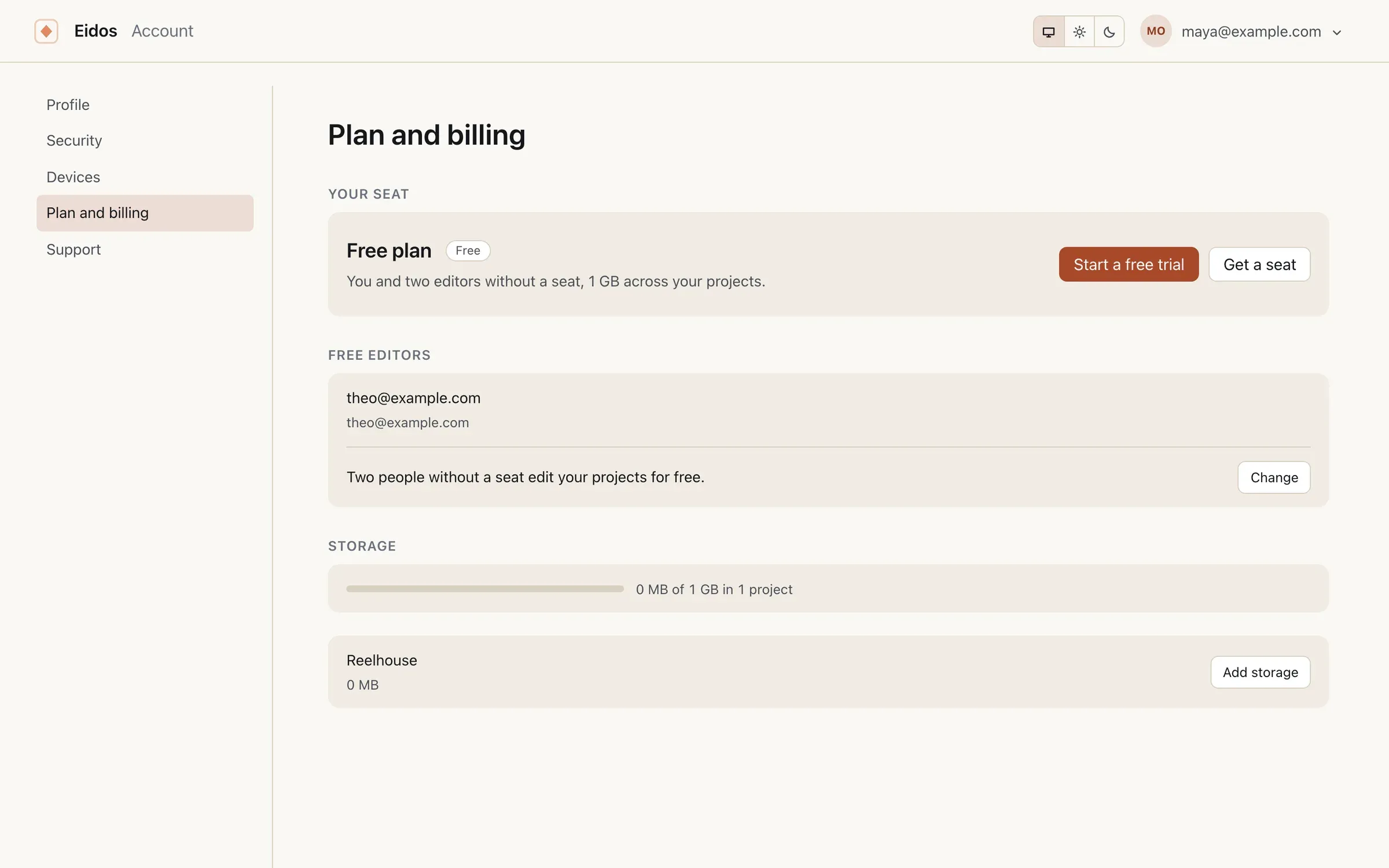
Start a free trial gives you a seat for 30 days with no card, once. A seat granted by Eidos reads Exclusive: A seat granted by Eidos, at no cost. A seat someone pays for you reads Seat from them, with Leave this seat.
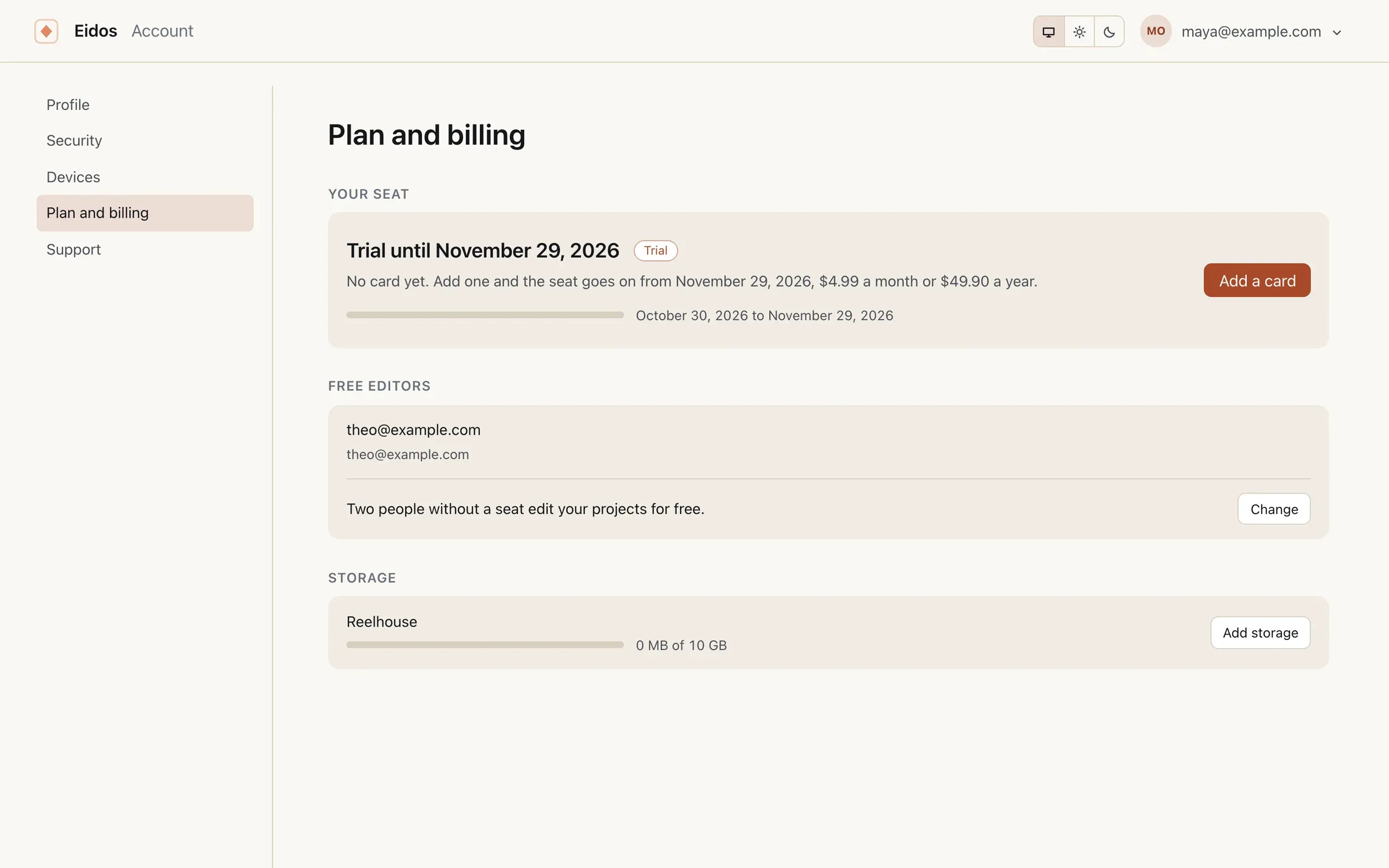
Once you pay for something it is split into Overview, Seats, Storage, and Billing:
- Overview: your seat and when it renews, the next charge, and what waits on you, such as a teammate asking for a seat.
- Seats: the seats you pay for others, and to whom. Invite pays for someone’s seat: type their email and Send invite, and they accept from their account menu or the email it sends. Take back returns a seat to you to give again. Your free editors are here too, with Change.
- Storage: each project’s storage, with Add storage.
- Billing: your card, your invoices with their receipts, and Stop at renewal.
Servers joins them once you license a team’s own server: License a server buys its seats and shows its key once, with Copy, and each server has Change seats, Make a new key, and Release. A licence granted by agreement is listed there too, marked By agreement.
A card is typed into Stripe’s own fields on the page, and every charge is shown before it is made. What each plan includes is on Plans and pricing.
Your data and your account
Section titled “Your data and your account”Download your data, at the foot of Profile, saves one file with your profile, your settings, your plan, and the projects you are on.
Delete account erases your account and everything Eidos keeps about you, at once, with no undo. Download your data first if you want a copy. Before it does anything it says exactly what will go:
- Projects only you are on are deleted, and you leave the projects you are a member of.
- Your seat, the seats you give, your storage, and your server licences end now. Invoices stay with Stripe, as the law requires.
- Your profile, username, settings, and two-step sign-in are erased.
- Every device is signed out.
- Your past edits stay in each project’s history, shown as a deleted account.
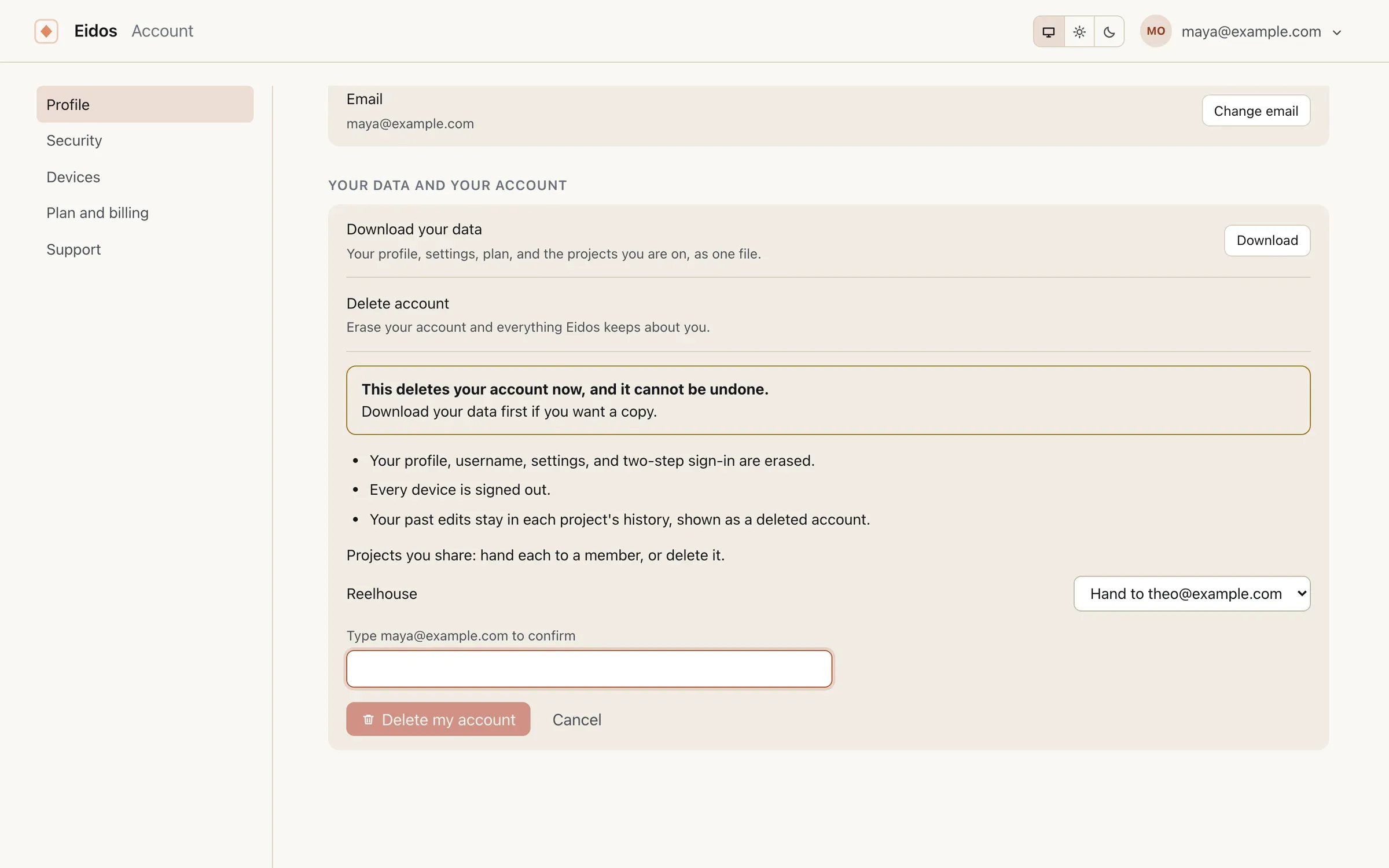
A project you own and share with others is yours to settle first: hand each to one of its members, or delete it. Then, with two-step sign-in on, enter a code from your authenticator app or a backup code, type your email, and Delete my account. With two-step sign-in off, typing your email is enough. No code is sent to your email, so an account that signs in with Apple’s Hide My Email can still be deleted.
Deleting the account never touches the folders on your own computers: they stay as they are, as plain files.